Natour
← Back to chapters

Lazy Pizza

Milestone #1 - Requirements & Mockups

textpost · published

Attachments

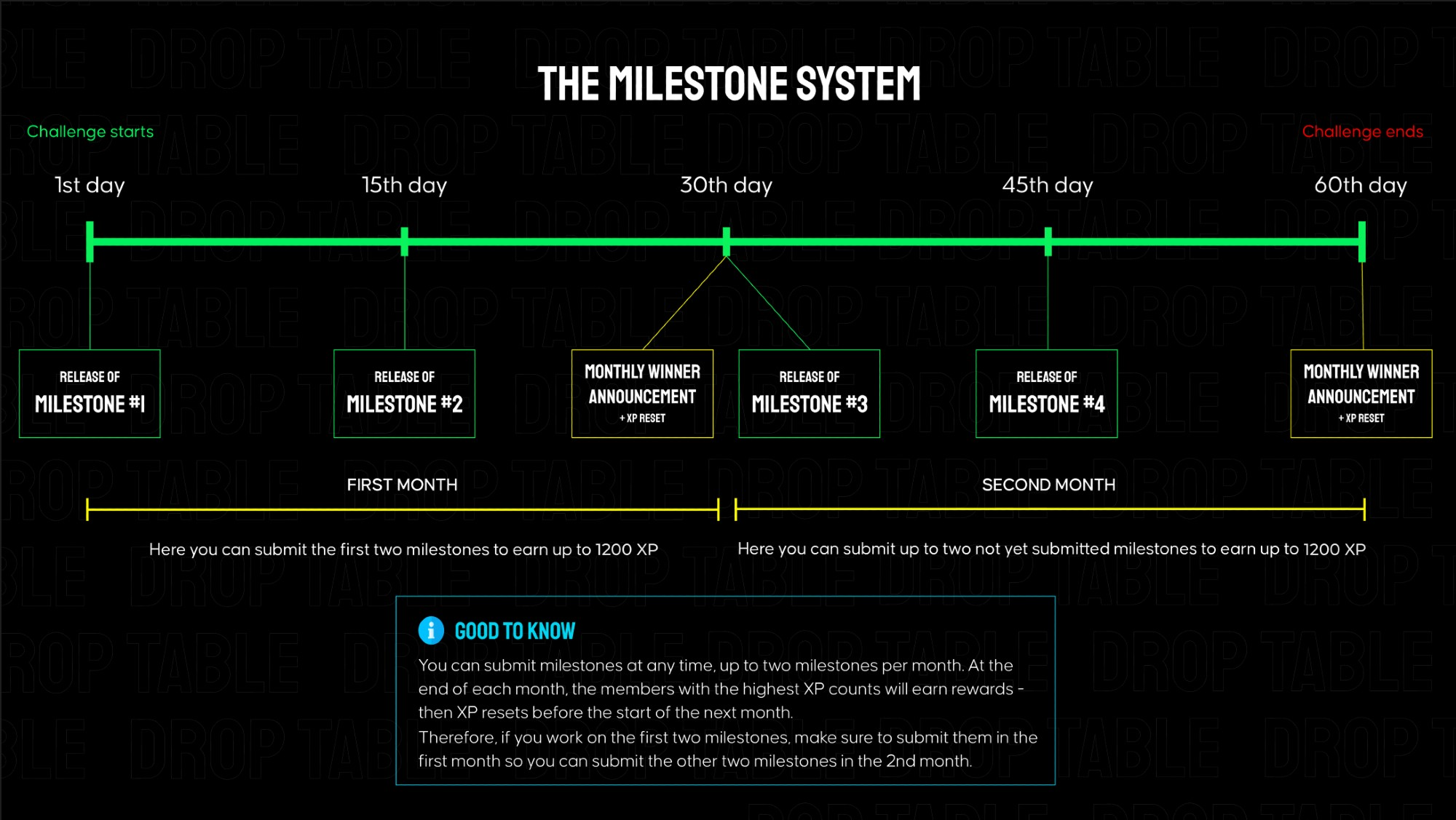
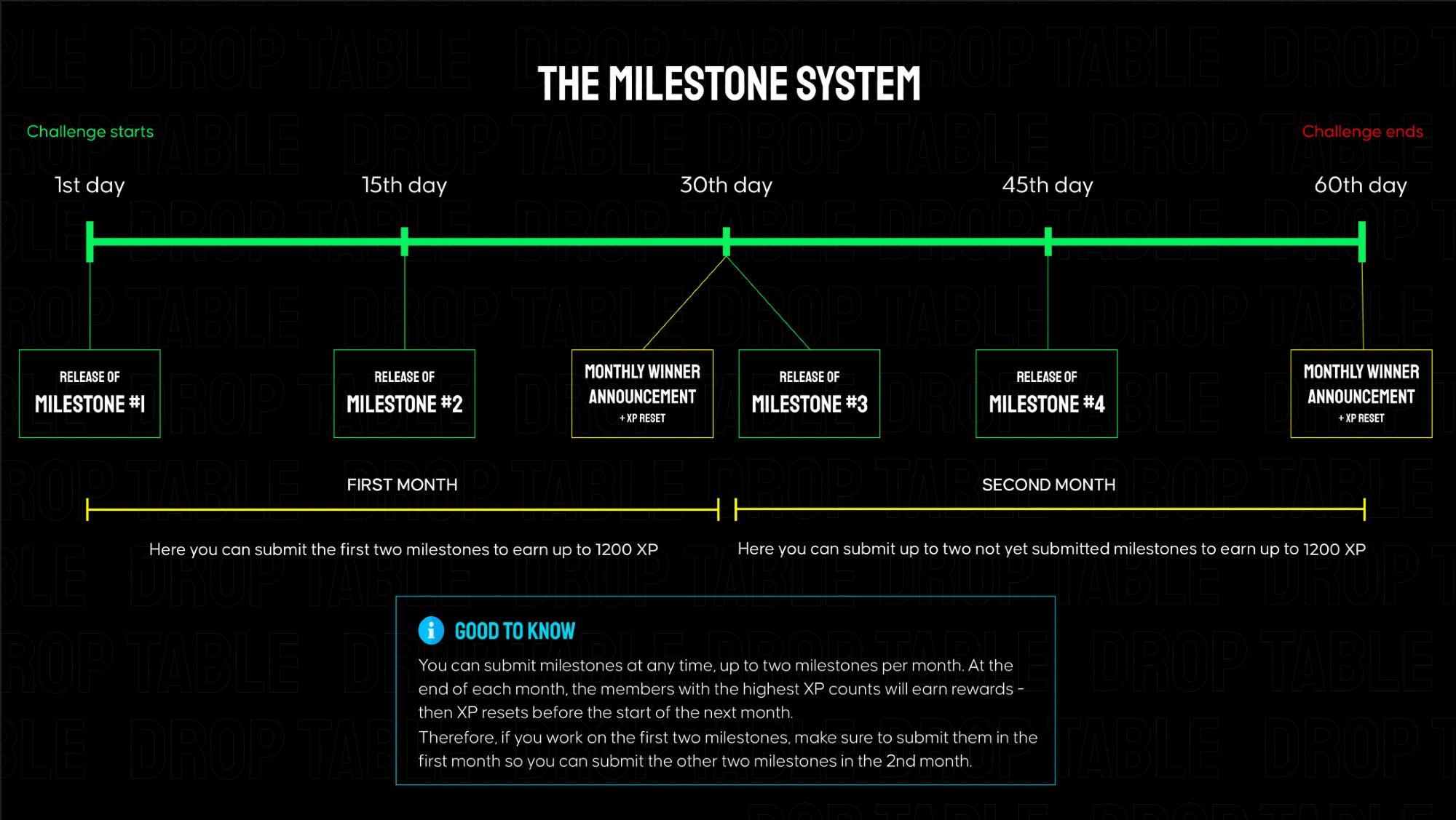
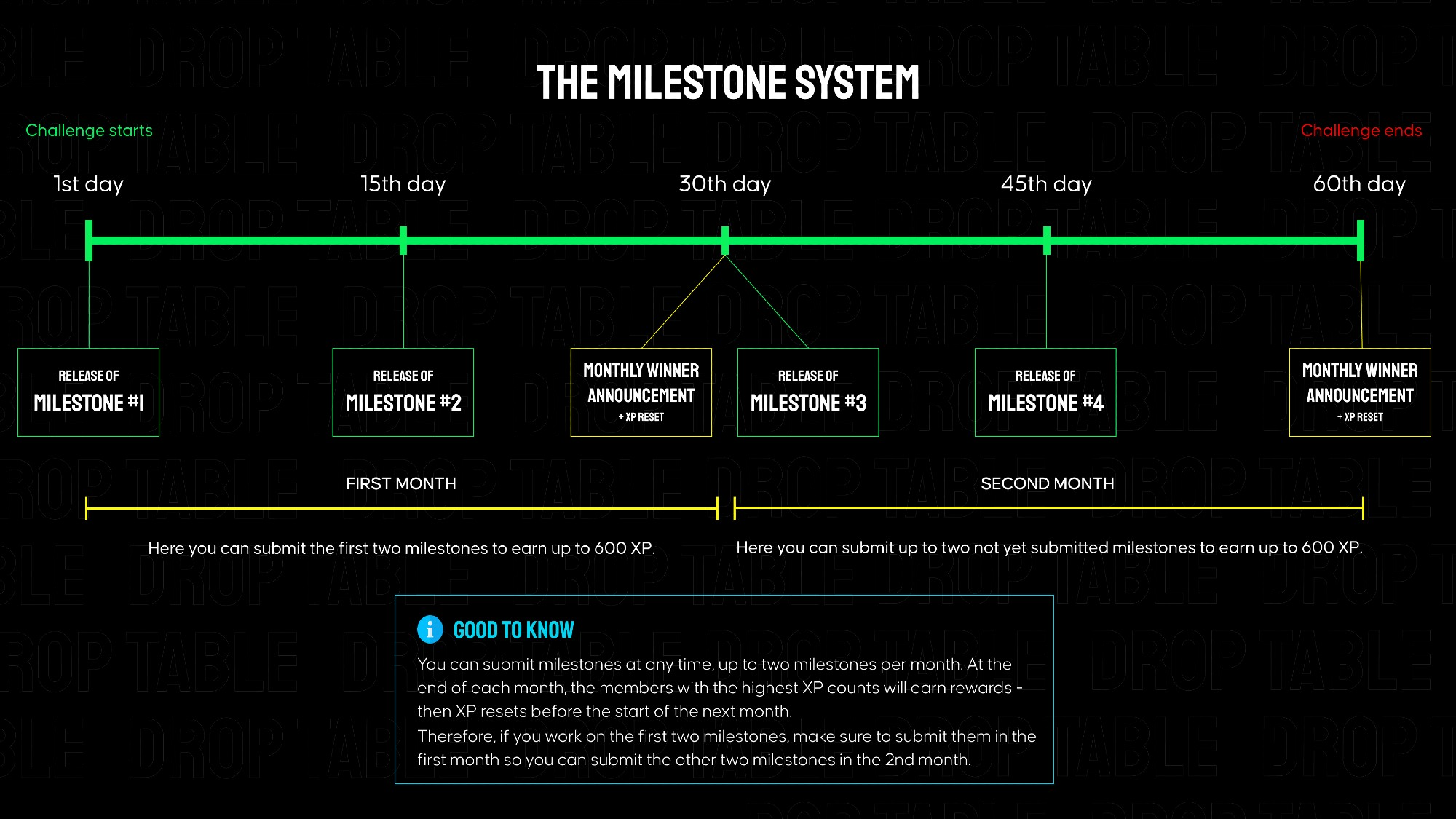
Lazy Pizza is separated into 4 milestones that build on each other, each granting 600 XP when submitted on Discord. Every ~2 weeks a new milestone is released here in the members area. The total challenge goes over 2 months.

Because Firebase Storage is no longer available in the free plan, we decided to simplify the task for participants and provide a ready-to-use image hosting solution.

All design assets have been uploaded to our website, and you can now access them directly via URL links. The image files keep the same folder structure as in the provided archive.

For example, if your archive path looks like this:
/drink/7-up.png
then the full URL for loading this file will be:
https://pl-coding.com/wp-content/uploads/lazypizza/drink/7-up.png

You can replace the part after /lazypizza/ with the corresponding folder or file name (for example, /pizza/, /sauce/, /icecream/).

Other FIrebase services — such as Authentication and Firestore Database — remain free for basic use, so you can safely use them in this project.

As an alternative, you can also consider Supabase, which offers similar functionality, including Storage, whithin its free plan.

👉 In the attachments, you can find links to the mockups and requirements for milestone #1.
Submission for Milestone #1:

A valid submission consists of a screen recording showcasing your app's functionality (must match the instructions below) as well as a link to your public GitHub repository.

Instructions for the milestone #1 video for Lazy Pizza - no longer than 90s:

  1. Open the app and show the Splash Screen.

  2. Use the search. Find Chocolate Ice Cream.

  3. In the horizontal category list, tap on Drinks to scroll the list.

  4. Tap Add to Cart on any product.

  5. Increase the product quantity.

  6. Decrease the product quantity to 1 and press minus.

  7. Add the product again and remove it from the list using the trash icon.

  8. Open the details screen of any pizza.

  9. Scroll to the extra toppings section.

  10. Add one topping.

  11. Increase the topping quantity to 3.

  12. Decrease the topping quantity to 0.

  13. Attach screenshots of the main screen and the product details screen in wide-screen layout.

Make sure all behavior and visuals match the official mockups.

📂 In the attached files you will find images of all products that should be used in this challenge.
Milestone #2 - Requirements & Mockups

textpost · published

Attachments

Lazy Pizza is separated into 4 milestones that build on each other, each granting 600 XP when submitted on Discord. Every ~2 weeks a new milestone is released here in the members area. The total challenge goes over 2 months.

👉 In the attachments, you can find links to the mockups and requirements for milestone #2.

Submission for Milestone #2:

A valid submission consists of a screen recording showcasing your app's functionality (must match the instructions below) as well as a link to your public GitHub repository.

Instructions for the milestone #2 video for Lazy Pizza - no longer than 90s:

  1. Open the app — the main screen must display the Bottom Navigation with three tabs: Menu, Cart, and History.

  2. Switch between the tabs to show the Cart (empty state) and History (unauthorized state) screens.

  3. Return to Menu and tap Add to Cart on any product.

  4. Verify that the Cart icon badge in the bottom navigation updates to show the correct number of items.

  5. On the Cart screen, increase the product quantity, then decrease it to 1 — make sure the “−” button becomes inactive.

  6. Tap the trash icon to remove the product from the cart — the cart should return to the empty state.

  7. Add a Margherita pizza with the following add-ons: Bacon and 2×Extra Cheese, then tap Add to Cart — the Cart screen should open immediately with the added pizza.

  8. In the Recommended Add-ons section, tap + on any available add-on — it should disappear from the list and appear in the cart.

  9. Remove this add-on from the cart and verify that it reappears in the Recommended Add-ons list.

  10. Increase the number of pizzas in the cart to 2 and confirm that the total price updates correctly.

  11. Take screenshots showing the wide-screen layout for both the Cart screen with added items and the Order History screen in the unauthorized state.

Make sure all behavior and visuals match the official mockups.

📂 In the attached files you will find images of all products that should be used in this challenge.

Milestone #3 - Requirements & Mockups

textpost · published

Attachments

Lazy Pizza is separated into 4 milestones that build on each other, each granting 600 XP when submitted on Discord. Every ~2 weeks a new milestone is released here in the members area. The total challenge goes over 2 months.

👉 In the attachments, you can find links to the mockups and requirements for milestone #3.

Submission for Milestone #3:

A valid submission consists of a screen recording showcasing your app's functionality (must match the instructions below) as well as a link to your public GitHub repository.

Instructions for the milestone #3 video for Lazy Pizza - no longer than 90s:

  1. Open the app — the top bar must display the user icon (unsigned state).

  2. Add several items to the cart while unsigned.

  3. Tap the icon → the Authentication screen opens.

  4. Enter a valid phone number → tap Continue to proceed to the code input screen.

  5. Wait for or enter the verification code manually — after successful verification, the user is signed in, and the logout icon appears on the main screen.

  6. Ensure the cart still contains the same items that were added before signing in.

  7. Tap the logout icon → confirm logout → the app returns to the unsigned state.

  8. Go to the History tab while unsigned → verify the “Not signed in” screen with the Sign In button.

  9. Tap Sign In → it opens the Authentication screen again.

  10. After signing in once more, open History → verify that the list of orders is displayed.

  11. Since order placement is not yet implemented, simulate the Order History — display a few sample order cards to demonstrate the filled state of the screen.

  12. Take two screenshots on a wide screen (from 840 dp and above):

    • the Authentication screen;

    • the Order History screen in the filled state.

Make sure all behavior and visuals match the official mockups.

📂 In the attached files you will find images of all products that should be used in this challenge.

Milestone #4 - Requirements & Mockups

textpost · published

Attachments

Lazy Pizza is separated into 4 milestones that build on each other, each granting 600 XP when submitted on Discord. Every ~2 weeks a new milestone is released here in the members area. The total challenge goes over 2 months.

👉 In the attachments, you can find links to the mockups and requirements for milestone #4.

Submission for Milestone #4:

A valid submission consists of a screen recording showcasing your app's functionality (must match the instructions below) as well as a link to your public GitHub repository.

Instructions for the milestone #4 video for Lazy Pizza - no longer than 90s:

  • Open the app — go to the Cart Screen.

  • Choose any pizza from the menu and add it to the cart.

  • Tap Checkout → the Order Checkout Screen opens.

  • In the Pickup Time section, select Earliest available time — show that the displayed time is calculated as the current time +15 minutes.

  • Switch to Schedule time — open the date picker and select any date.

  • Select an invalid time, e.g., 10:00 AM, to show the error message.

  • Then select a valid time.

  • Tap Order Details to expand the list of products and change the quantity of one item — show that the total price updates dynamically.

  • In Recommended Add-ons, add a few additional products to the order.

  • In the Comments field, enter a short note, for example: “Please remove the spices — allergy.”

  • Tap Place Order → the screen transitions to the Order Confirmation State.

  • Tap Back to Menu → the main screen opens.

  • Go to the History tab → show that the newly created order appears with the status In Progress.

  • Take two screenshots on a wide screen (from 840 dp and above):

    • Order Checkout Screen (before pressing Place Order);

    • Order Confirmation Screen (after placing the order).

Make sure all behavior and visuals match the official mockups.

📂 In the attached files you will find images of all products that should be used in this challenge.