Natour
← Back to chapters

Smart Step

Milestone #1 - Requirements & Mockups

textpost · published

Attachments

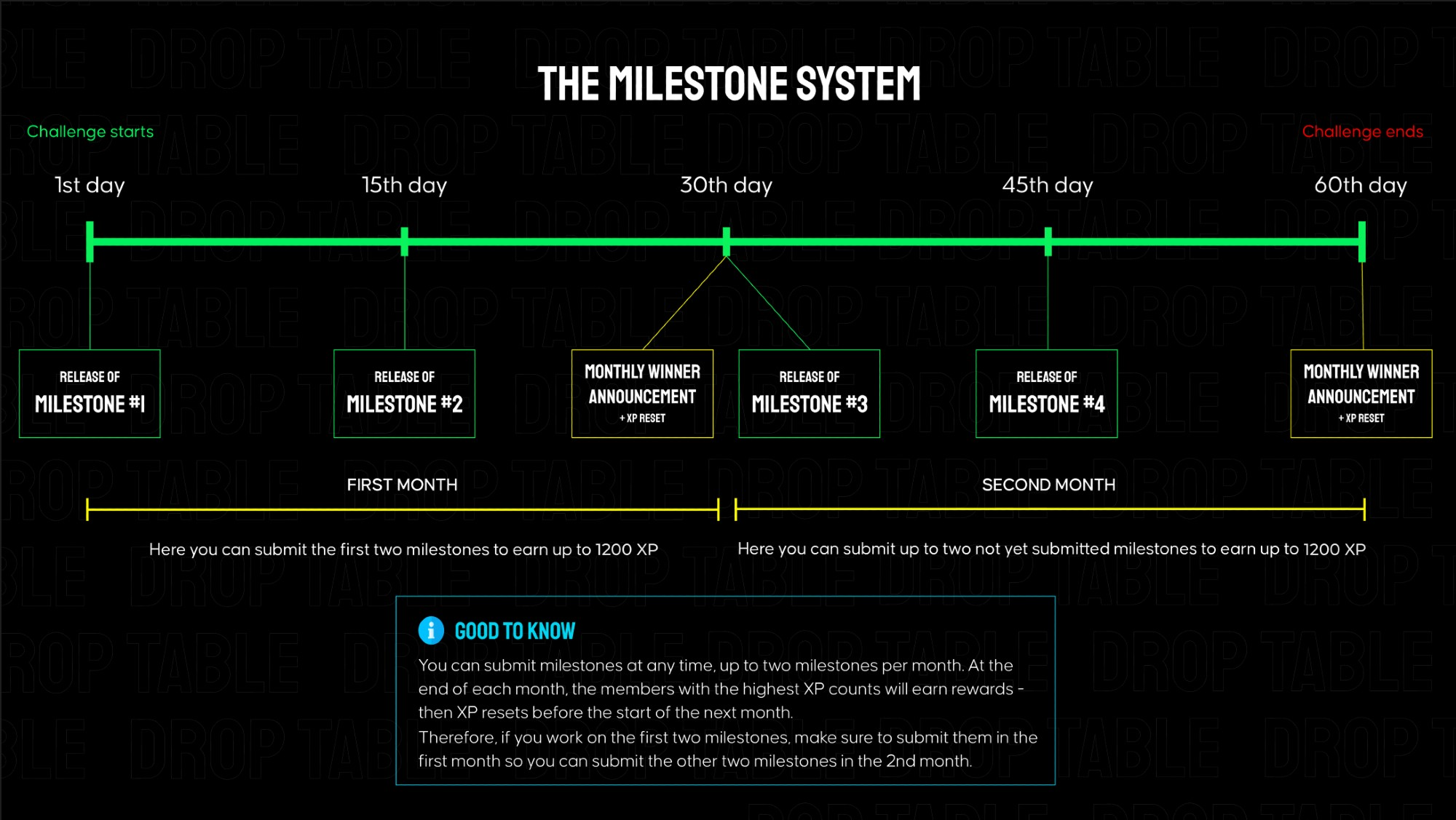
Smart Step is separated into 4 milestones that build on each other, each granting 600 XP when submitted on Discord. Every ~2 weeks a new milestone is released here in the members area. The total challenge goes over 2 months.

👉 In the attachments, you can find links to the mockups and requirements for milestone #1.
Submission for Milestone #1:

A valid submission consists of a screen recording showcasing your app's functionality (must match the instructions below) as well as a link to your public GitHub repository.

Instructions for the milestone #1 video for Smart Step - no longer than 90s:

  1. Launch the app → Splash Screen is shown.

  2. On the My Profile screen, change profile values and switch Height from cm to ft/in.

  3. Tap Start → navigate to the Main Screen.

  4. System Physical Activity permission appears → tap Deny.

  5. Bottom Sheet 1 appears → tap Allow access.

  6. Physical Activity permission appears again → tap Deny.

  7. Bottom Sheet 2 (Manual permission) appears → tap Open settings.

  8. In system settings, enable Physical Activity permission and return to the app.

  9. Bottom Sheet 3 (Background access) appears → tap Continue and grant permission.

  10. Open Navigation Drawer → go to Step Goal, change the value and save it.

  11. In Navigation Drawer, open Personal Settings, change Height and switch units from ft/in back to cm.

  12. On the Main Screen, show a visible change in the step count (see options below).

  13. Open Navigation Drawer → select Exit and confirm app exit.

  14. Attach two screenshots showing the Main Screen and the My Profile screen in a wide-screen layout.

Make sure all behavior and visuals match the official mockups.

How to Show Step Count Changes

Show step count changes in any way where the numeric value clearly updates on screen.

Allowed options:

  • Physical device
    Walk a few steps or gently move the phone until the step count increases.

  • Android Emulator

    1. Open Extended controls (⋯).

    2. Go to Virtual SensorsDevice Pulse.

    3. Select Move and change values on the X / Y axes.

    4. Return to the app → the step count should update.

The video must clearly show the step count number changing.
Milestone #2 - Requirements & Mockups

textpost · published

Attachments

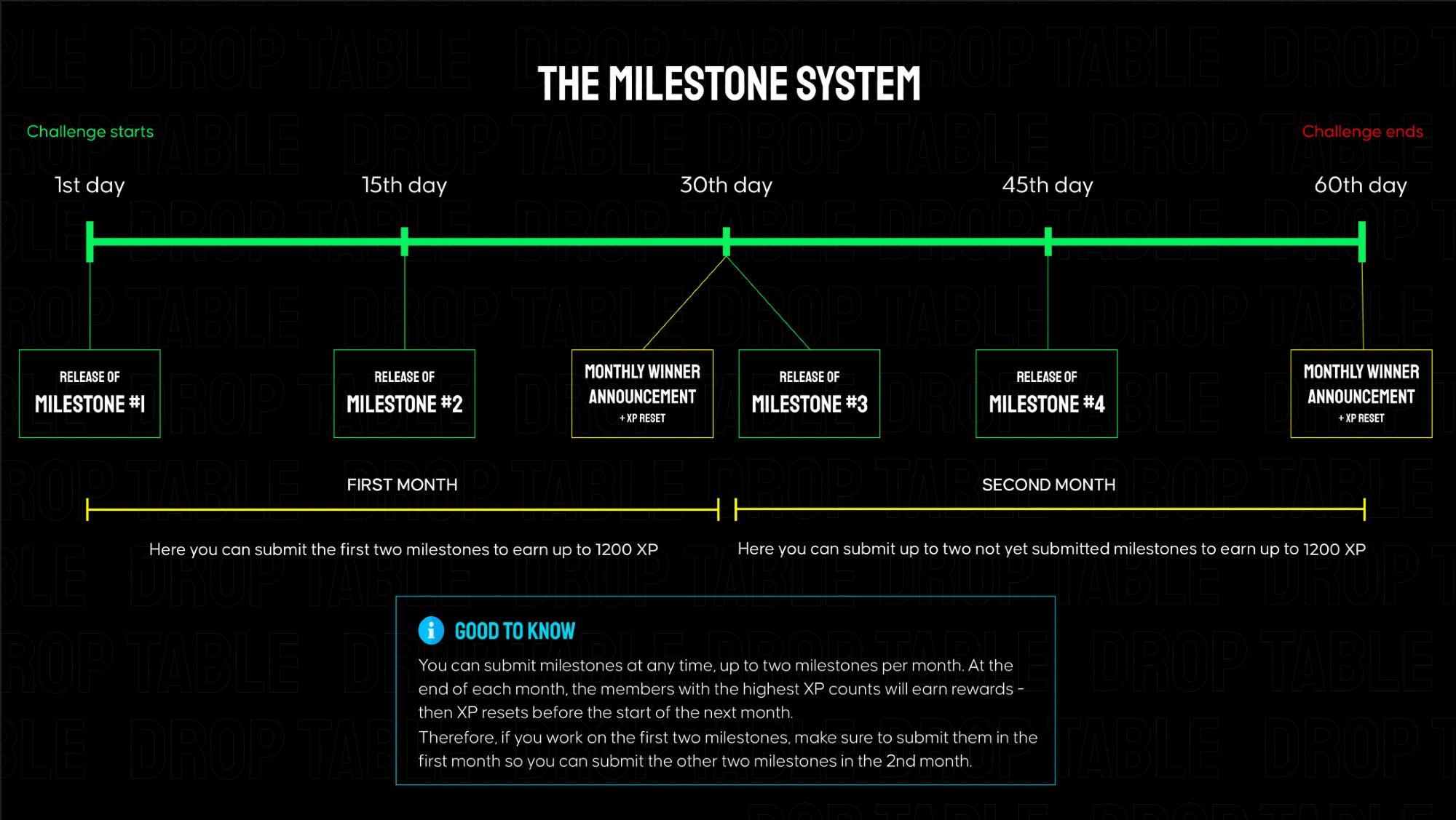
Smart Step is separated into 4 milestones that build on each other, each granting 600 XP when submitted on Discord. Every ~2 weeks a new milestone is released here in the members area. The total challenge goes over 2 months.

👉 In the attachments, you can find links to the mockups and requirements for milestone #2.

Submission for Milestone #2:

A valid submission consists of a screen recording showcasing your app's functionality (must match the instructions below) as well as a link to your public GitHub repository.

Instructions for the milestone #2 video for Smart Step - no longer than 90s:

  1. Launch the app → the Main Screen is displayed.

  2. Trigger step counting via movement (walk, move the device, or simulate motion in the emulator) → the step count and metrics update.

  3. Tap Pause → step tracking switches to the Paused state.

  4. Move the device or simulate motion → the step count does not change.

  5. Tap Resume → step tracking resumes.

  6. Select Reset Today’s Steps, confirm the action → the step count resets to 0.

  7. Trigger step counting again via movement → steps start counting from zero.

  8. Open Edit Steps, enter any step value, and tap Save.

  9. Return to the Main Screen → the manually set step count is displayed.

  10. Minimize the app → the Foreground Notification appears.

  11. Expand the notification (collapsed → expanded).

  12. Tap the notification → the app opens.

  13. Attach one screenshot showing the Edit Steps dialog displayed in a wide-screen layout.

Make sure all behavior and visuals match the official mockups.

How to Show Step Count Changes

Show step count changes in any way where the numeric value clearly updates on screen.

Allowed options:

  • Physical device
    Walk a few steps or gently move the phone until the step count increases.

  • Android Emulator

    1. Open Extended controls (⋯).

    2. Go to Virtual SensorsDevice Pulse.

    3. Select Move and change values on the X / Y axes.

    4. Return to the app → the step count should update.

The video must clearly show the step count number changing.
Milestone #3 - Requirements & Mockups

textpost · published

Attachments

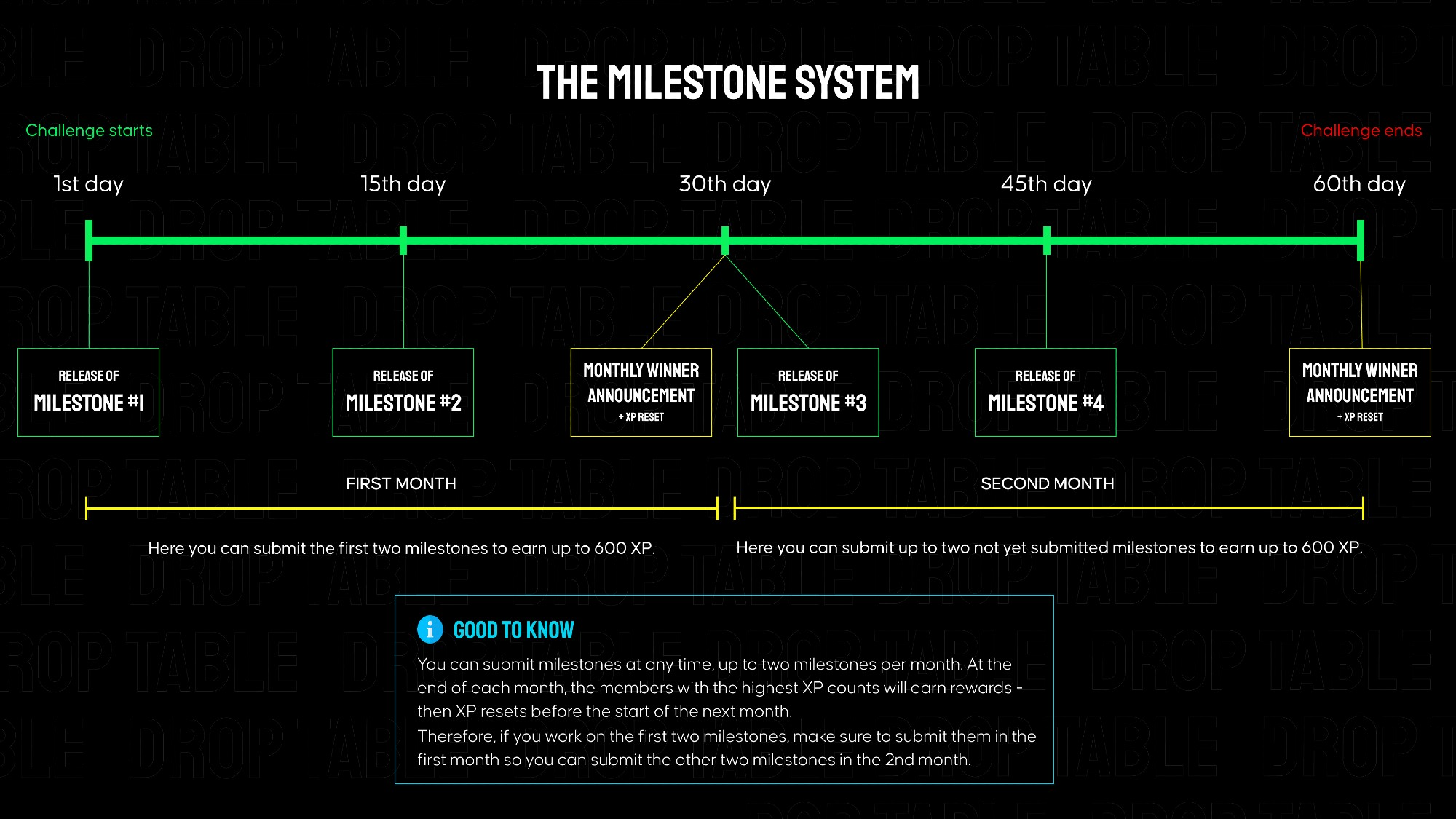
Smart Step is separated into 4 milestones that build on each other, each granting 600 XP when submitted on Discord. Every ~2 weeks a new milestone is released here in the members area. The total challenge goes over 2 months.

👉 In the attachments, you can find links to the mockups and requirements for milestone #3.

Submission for Milestone #3:

A valid submission consists of a screen recording showcasing your app's functionality (must match the instructions below) as well as a link to your public GitHub repository.

Instructions for the milestone #3 video for Smart Step - no longer than 90s:

  1. Launch the app → the Main Screen is displayed.

  2. Change the Daily Step Goal → the AI Insight on the main screen updates.

  3. Tap More in the AI Insight → the AI Coach Chat Screen opens.

  4. Wait for the automatic initial AI message.

  5. Tap one of the Quick Suggestions → the AI sends a response.

  6. Enter a custom message and send it → receive an AI response.

  7. Tap Back → return to the Main Screen.

  8. Tap More again → the AI Coach Chat Screen opens with a new session and a new initial message.

  9. While on the AI Coach Chat Screen, disable the internet connection.

  10. Try to send a message → the input field and send button are disabled.

  11. Re-enable the internet connection.

  12. Enter and send a message → the AI responds again.

  13. Attach one screenshot showing the AI Coach Chat Screen with at least one AI response visible.

Make sure all behavior and visuals match the official mockups.