Natour
← Back to chapters

NoteMark

Milestone #1 - Requirements & Mockups

textpost · published

Attachments

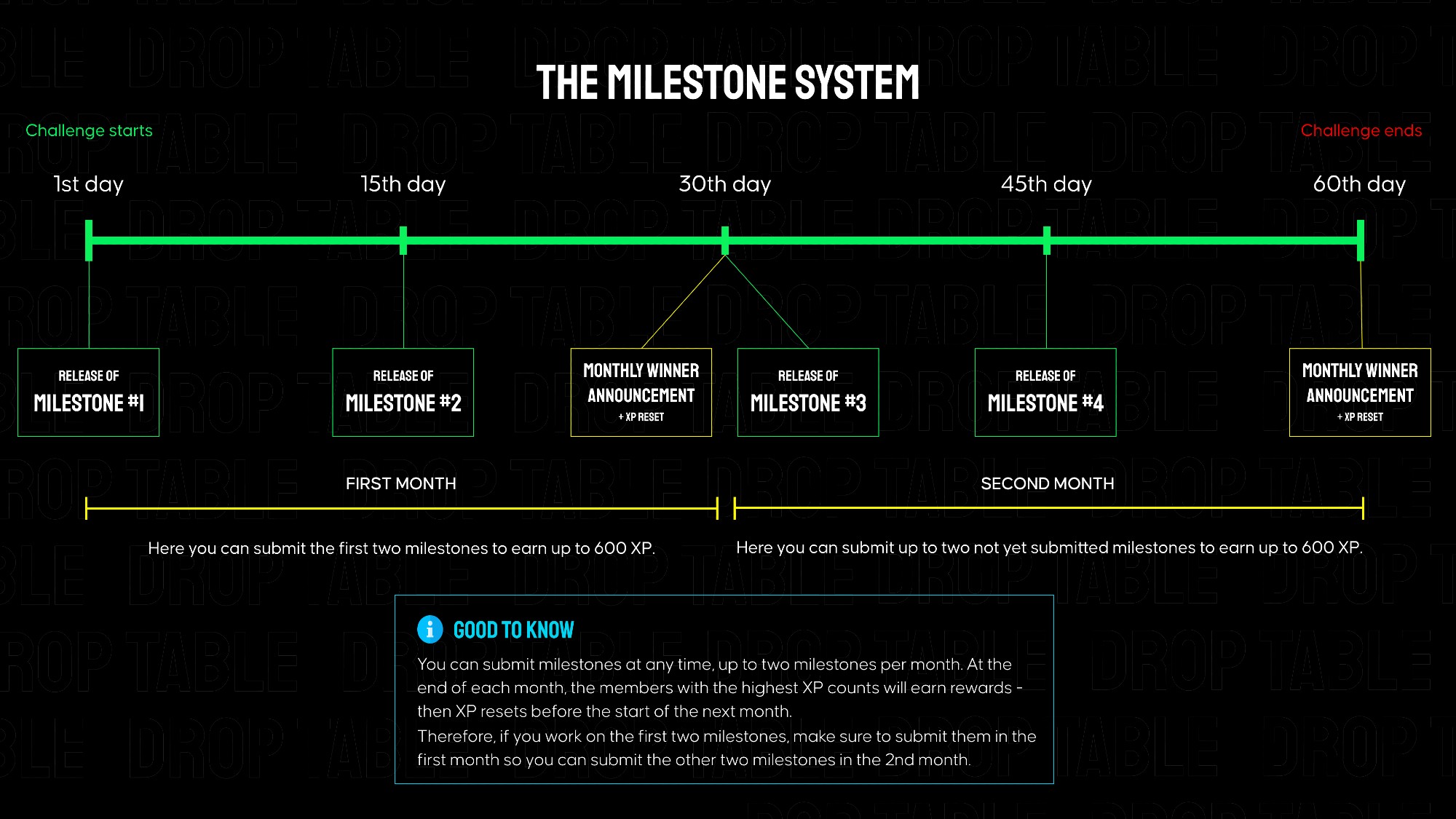
NoteMark is separated into 4 milestones that build on each other, each granting 300 XP when submitted on Discord. Every ~2 weeks a new milestone is released here in the members area. The total challenge goes over 2 months.

👉 In the attachments on the right, you can find links to the mockups and requirements for milestone #1.
Submission for Milestone #1:

A valid submission consists of a screen recording showcasing your app's functionality (must match the instructions below) as well as a link to your public GitHub repository.

Instructions for the milestone #1 video for NoteMark - no longer than 90s:

  1. Open the app and click on "Get Started".

  2. Rotate the device.

  3. Enter the following details:

    1. Username: Up to you, must be unique

    2. Email: "test@test"

    3. Password: "Helloworld"

    4. Repeat password: "Helloworld"

  4. After getting errors on the invalid text fields, correct them to be valid. Make sure the email is unique by appending a random sequence of numbers to it, e.g. "test@test543452.com"

  5. Register a new account with those details.

  6. Visit the login screen and log in with these credentials.
Milestone #2 - Requirements & Mockups

textpost · published

Attachments

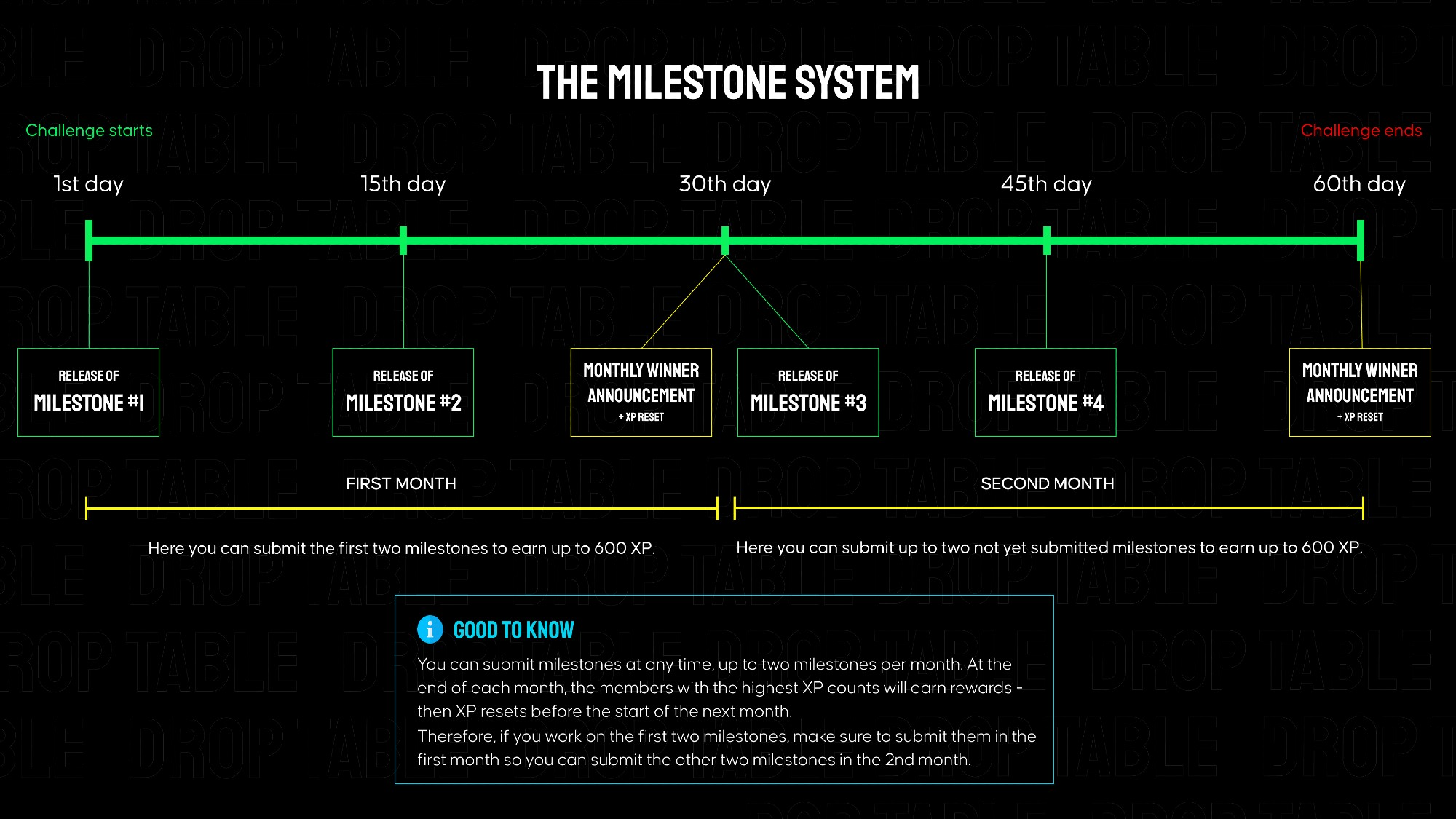
NoteMark is separated into 4 milestones that build on each other, each granting 300 XP when submitted on Discord. Every ~2 weeks a new milestone is released here in the members area. The total challenge goes over 2 months.

👉 In the attachments on the right, you can find links to the mockups and requirements for milestone #2.

Submission for Milestone #2:

A valid submission consists of a screen recording showcasing your app's functionality (must match the instructions below) as well as a link to your public GitHub repository.

Instructions for the milestone #2 video for NoteMark - no longer than 120s:

  1. Open the app.

    1. Note list should be empty

  2. Tap the FAB (bottom-right).

  3. Edit the note title and content

  4. Tap "Save Note"

    1. You should be navigated back to the Note List screen

  5. Repeat steps 2–4 to create two more notes.

    1. One of the notes should have a lots of content text (See below for sample text that you can paste in if needed)

  6. After creating the 3rd note, rotate the device to landscape.

  7. Tap on a note

  8. Edit the title and tap the "X" icon

  9. Confirm you want to exit without saving the changes

  10. Delete any note

Sample Note Content Text

The quiet hum of the morning air was broken only by the soft rustle of leaves dancing in the breeze. A cup of coffee steamed gently in hand, warmth seeping into chilled fingers. Thoughts flowed freely, unbothered by structure or form—just fragments of memory and hope stitched together. In this stillness, inspiration felt close, like a familiar friend waiting to be acknowledged and welcomed in. Pages remained blank, yet full of potential. Each pause between thoughts was its own kind of music. The world outside hadn’t changed, but the lens through which it was viewed felt freshly cleaned—clearer, softer. Clouds moved lazily across the sky, painting slow-moving stories above. A breeze swept in, carrying with it the faint scent of earth and something that reminded one of home. The clinking of a spoon against a ceramic mug, the distant bark of a dog, a laugh from a neighbor’s open window—each moment ordinary, yet profound. And somehow, all of it seemed to whisper: write, because this matters.

Milestone #3 - Requirements & Mockups

textpost · published

Attachments

NoteMark is separated into 4 milestones that build on each other, each granting 300 XP when submitted on Discord. Every ~2 weeks a new milestone is released here in the members area. The total challenge goes over 2 months.

👉 In the attachments on the right, you can find links to the mockups and requirements for milestone #3.

Submission for Milestone #3:

A valid submission consists of a screen recording showcasing your app's functionality (must match the instructions below) as well as a link to your public GitHub repository.

Instructions for the milestone #3 video for NoteMark - no longer than 120s:

  1. Open the app and log in.

  2. On the Note List screen, tap the ⚙️ Settings icon and navigate to the Settings screen.

  3. Tap "Log out" (red text).

  4. Log in again — you should land back on the Note List screen.

  5. Tap the FAB (+) to create a new note, enter a title and content, then tap “Save Note”.

  6. Tap the newly created note — it should open in View Mode.

  7. Tap the 📖 (book icon) to enter Reader Mode.

  8. Wait until the UI elements (title, buttons) disappear after 5 seconds.

  9. Tap anywhere on the screen — the UI elements should reappear.

  10. Tap the 📖 icon again to exit Reader Mode and return to View Mode.

  11. Tap ✏️ (edit icon) and make any changes.

  12. Tap “Save Note” in the top right corner.

Milestone #4 - Requirements & Mockups

textpost · published

Attachments

NoteMark is separated into 4 milestones that build on each other, each granting 300 XP when submitted on Discord. Every ~2 weeks a new milestone is released here in the members area. The total challenge goes over 2 months.

👉 In the attachments on the right, you can find links to the mockups and requirements for milestone #4.

Submission for Milestone #4:

A valid submission consists of a screen recording showcasing your app's functionality (must match the instructions below) as well as a link to your public GitHub repository.

Instructions for the milestone #4 video for NoteMark - no longer than 120s:

  1. Open the app and log in to your account. You should already have a few notes created in advance.

  2. Enable Airplane Mode or turn off the internet on your device.

  3. On the Note List screen, tap the “+” button to create a new note. Enter a title and some content. Make sure the note appears in the list even while offline.

  4. Open a previously created note — it should open in View Mode.

  5. Tap the edit icon (✏️) to enter Edit Mode and change the content (e.g., add a new word or sentence).

  6. Wait for 2–3 seconds after typing — the changes should be saved automatically.

  7. Switch back to View Mode and verify that:

    • the updated content is shown;

    • the "Last edited" time has changed (should display "Just now").

  8. Turn the internet back on.

  9. Make sure that manual sync is selected in the settings.

  10. Wait a few seconds and tap “Sync Data” in the Settings screen. A loading indicator should appear.

  11. After syncing, return to the edited note and verify that:

    • the content remains unchanged;

    • the last edited time is still the same.

  12. Turn off the internet again and try tapping “Log out” — a message should appear saying that an internet connection is required.

  13. Turn the internet back on and tap “Log out” again — you should return to the login screen.